Help
Teacher guide
Everything you need to use Hikmoo in your class, step by step and with screenshots.
To my dashboardGetting started
Hikmoo works in the browser, on a computer, tablet or phone. Nothing to install and no password needed.
- Go to hikmoo.com/en/login and enter your email address. Use the address your mosque or school invited you with.
- You receive an email with a login link and a 6-digit code. Click the link, or enter the code on the login screen (handy in the app on your home screen or on another device): you're logged in (for 30 days on that device).
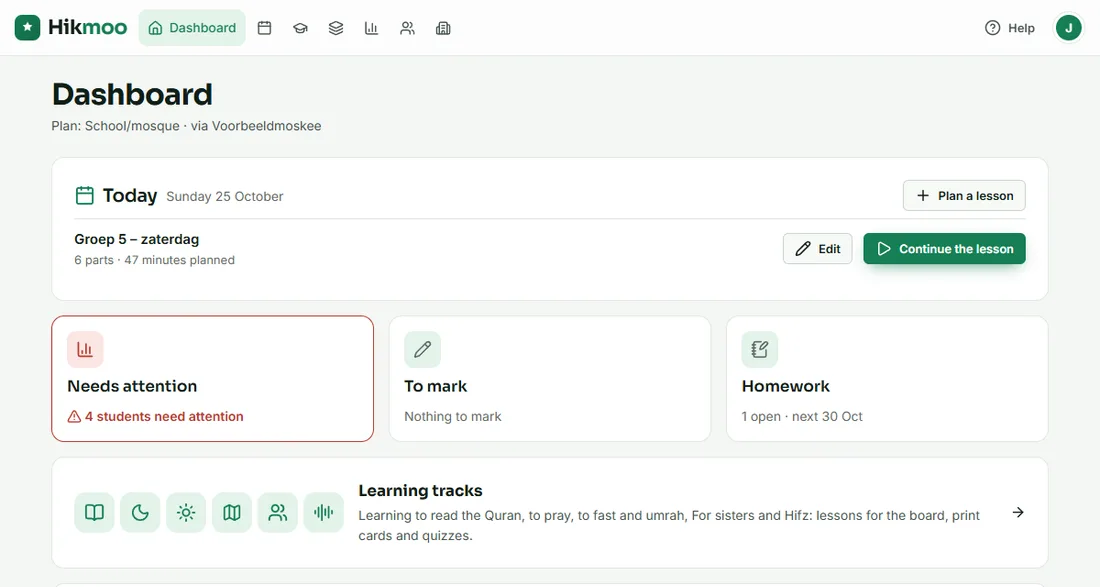
- You land on your Dashboard: an overview of who needs attention, what you still need to mark, open homework and your classes (with Start a lesson on the TV). At the top are the tabs Dashboard, Lessons, Learning tracks, Content, Progress, My classes and the name of your mosque or school.
- Under Content, at I teach, choose Children or Adults. With adults Hikmoo talks about groups and participants instead of classes and students, and the features for young children are hidden.
- Under Learning tracks you find the ready-made teaching method: Learning to read the Quran, to pray, to fast and umrah, For sisters and Hifz, with per module the lessons for the board, print cards or a workbook. Under Content you find your own material, in tabs: Quizzes & tests (your own quizzes and those of colleagues), Presentations and the Library. Under Progress you find the overview and Tests & homework (results and marking).
- New? Follow the Getting started block: create a class, add students, pick a quiz and play your first lesson. The block disappears once everything is done.
No email? Check your spam folder, or ask your coordinator whether your address is correct.
Creating a class
A class is a list of your students' first names. Children don't need an account: they simply pick their name.
- Go to My classes, type a name such as Year 4 – Saturday and click New class.
- Open the class. Under Students, type the first names, one per line (or paste a list), and click Add.
- A name no longer right? Click the cross behind it.

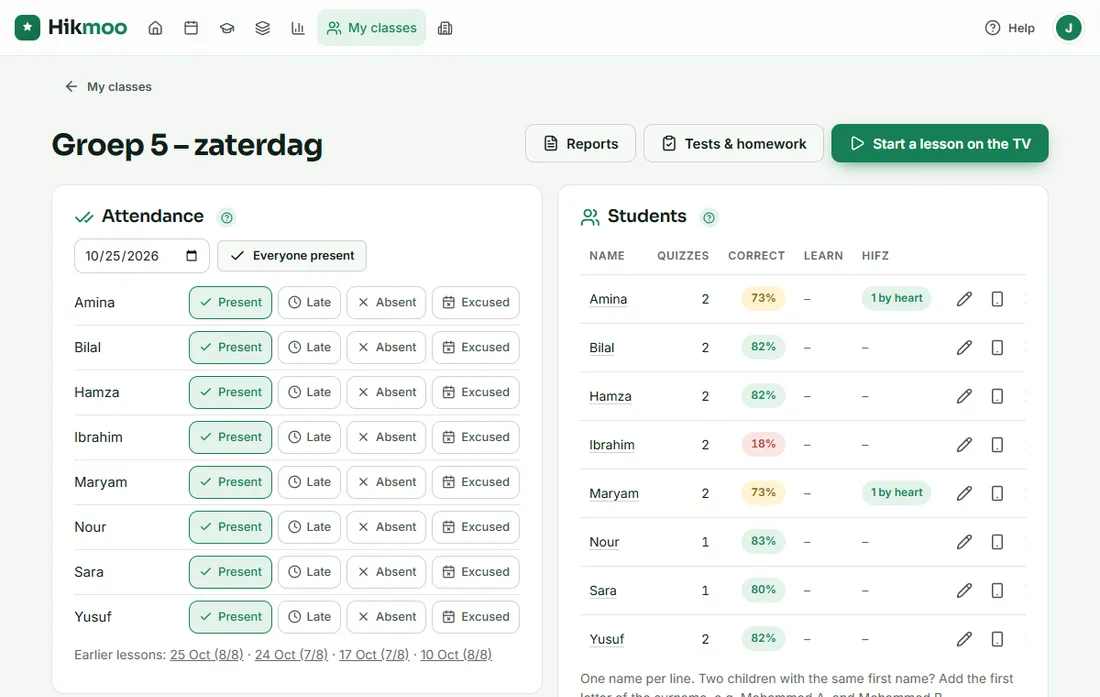
Use first names. Two children with the same name? Add the first letter of the surname: Mohammed A. and Mohammed B. A name that is already in the class is not added twice; you get a message. Change an existing name with the pencil after the name.
Click * next to a name for a personal progress link. With it the student (or a parent) sees their own lessons, grades, open homework and what to work on, on their own phone. Only their own. Let them scan the QR code or send the link via WhatsApp. Lost or shared? Choose Make a new link*: the old one stops working.
Making a quiz
Use a quiz in class on the TV, as a test or as homework. Make it once and use it as often as you like.
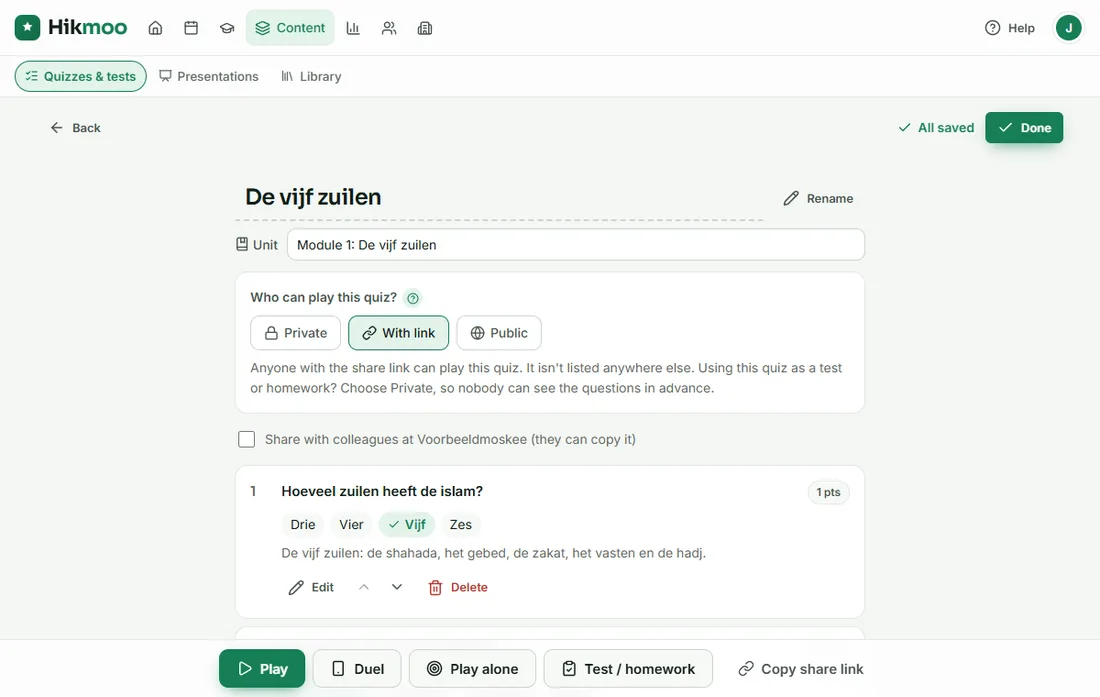
- Under Content › Quizzes & tests, type a name for the quiz (e.g. The five pillars) and click + New quiz.
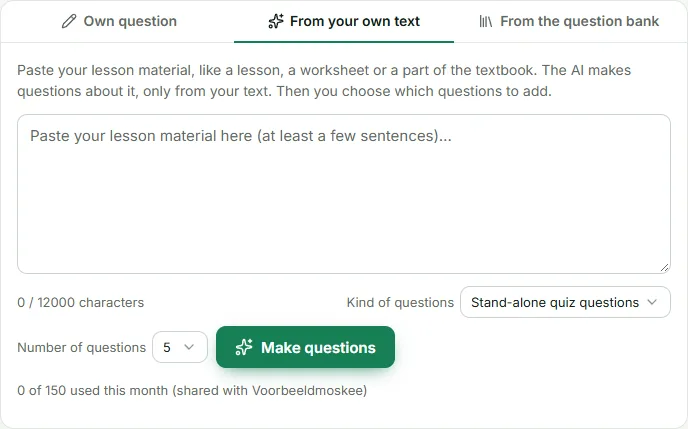
- Add questions with one of the three tabs below: Own question, From the question bank (thousands of checked questions) or From your own text (the AI makes questions from your lesson material).
- For your own question choose the type: multiple choice, true/false, sort, order, Statement or (tests only) short answer and open question. Click the circle next to the right answer. A statement has no right answer: everyone chooses e.g. Agree or Disagree, without points, and after the question you see how the group voted. Great for opening the conversation in class.
- Click Add question. At the top you see All saved. While you're typing a question it says Question not saved yet in orange, with a Save question button at the bottom.
- Under Unit, enter which part of your course the quiz belongs to, e.g. Module 2: Wudu. Progress then shows per unit how your students are doing. Empty = the quiz name.
- Under Who can play this quiz? choose Private (only you and, if you share the quiz, your colleagues), With link (anyone with the share link, the default) or Public (in the quiz library, after Hikmoo has checked the quiz). Using the quiz as a test or homework? Choose Private.
- Done? Click Done at the top right. Rename the quiz with Rename.
No time to start from scratch? At the bottom of your dashboard are Ready-made quizzes (e.g. The five pillars, Prayer and wudu, Seerah). Play them right away, or choose Use and edit to get a copy in your own quizzes.
With From your own text choose Stand-alone quiz questions (make sense without the text) or Test about this text. Always check every question: AI can make mistakes.
An explanation with a question appears after the answer, so children also learn from a wrong answer.
With Play alone (at the bottom of the editor) you try out your quiz yourself, at your own pace. Students can also use it to practise at home.
In the Quiz library (at the top) you'll find quizzes by Hikmoo and by other teachers and parents. Play them right away or choose Copy to my quizzes. A public quiz you edit later is checked again first; until then the previous version stays in the library.
A lesson on the TV
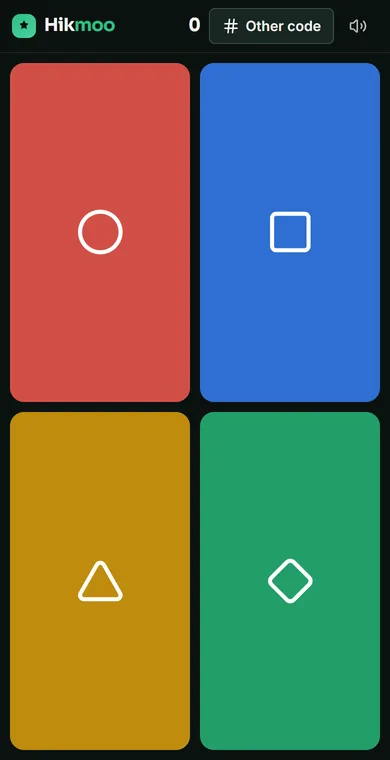
The question is on the TV or whiteboard, and every child answers on a phone or tablet.
- Open your class and click Start a lesson on the TV, or open a quiz and click Play.
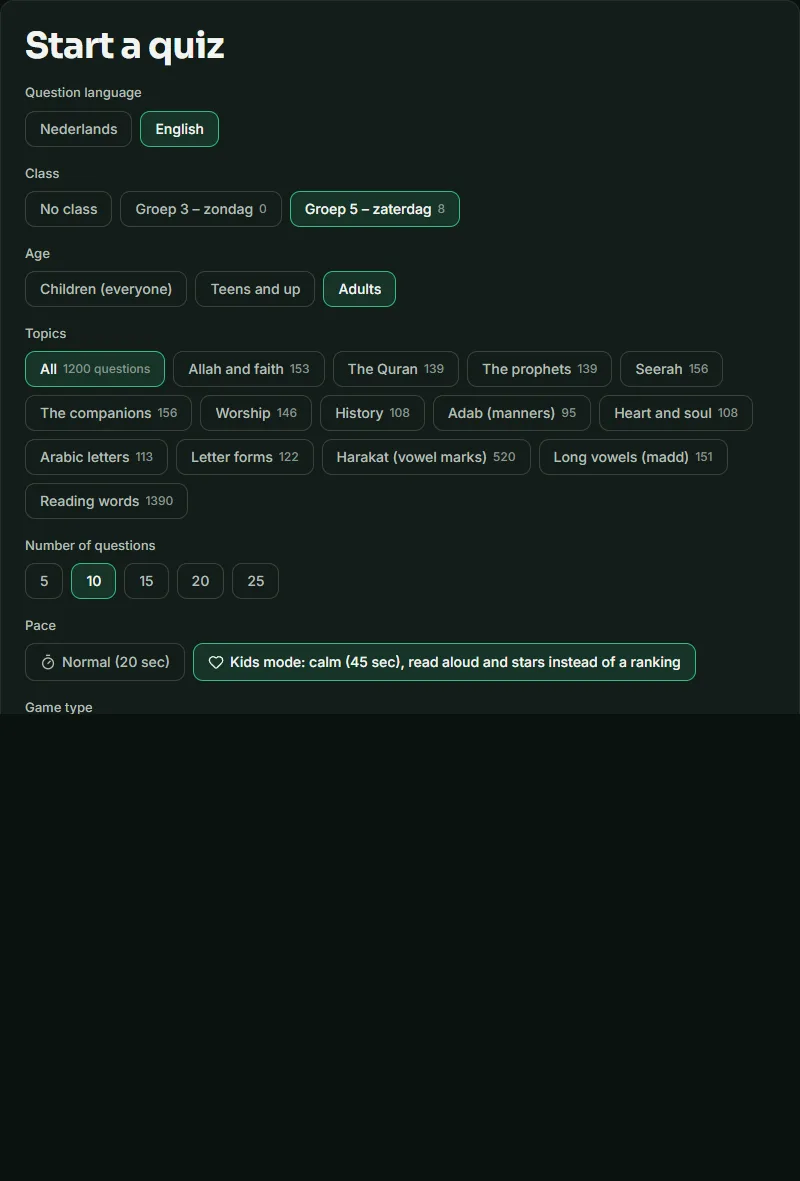
- Choose the class, the number of questions and the pace. Playing from the question bank? Also choose the age and topics. Click Create the game.
- The screen shows a code and a QR code. Children go to hikmoo.com/play, type the code and tap their own name.
- See all names? Click Start! After each question you see the right answer with the explanation, then the scores.
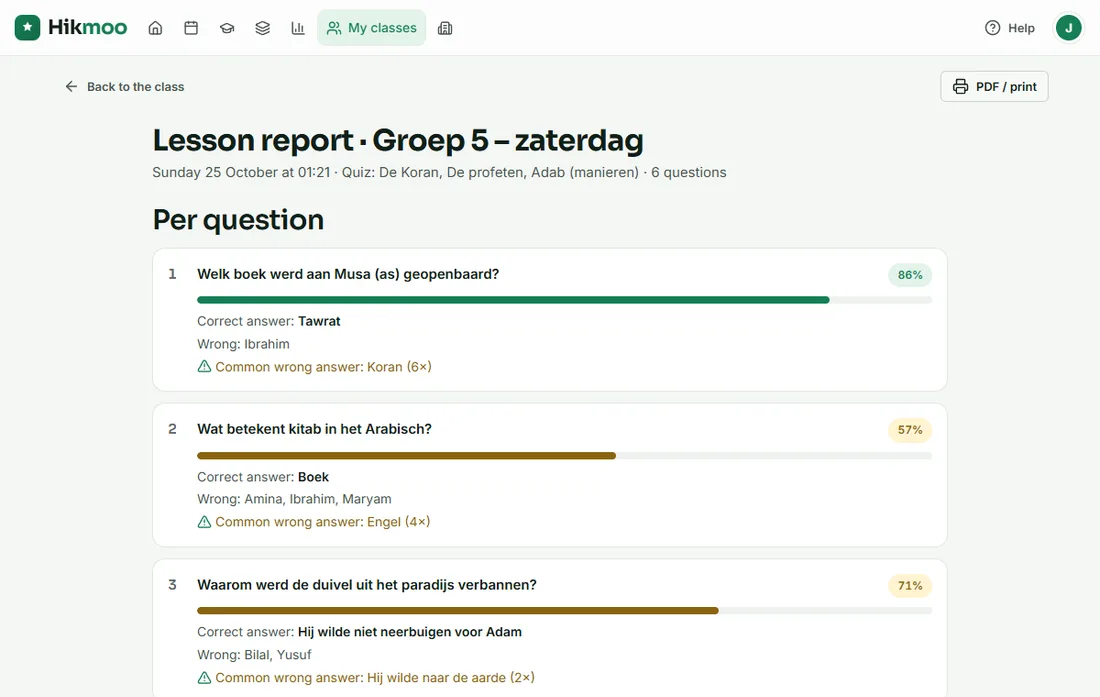
- After the podium click View lesson report: per question you see how many children got it right and who got it wrong.
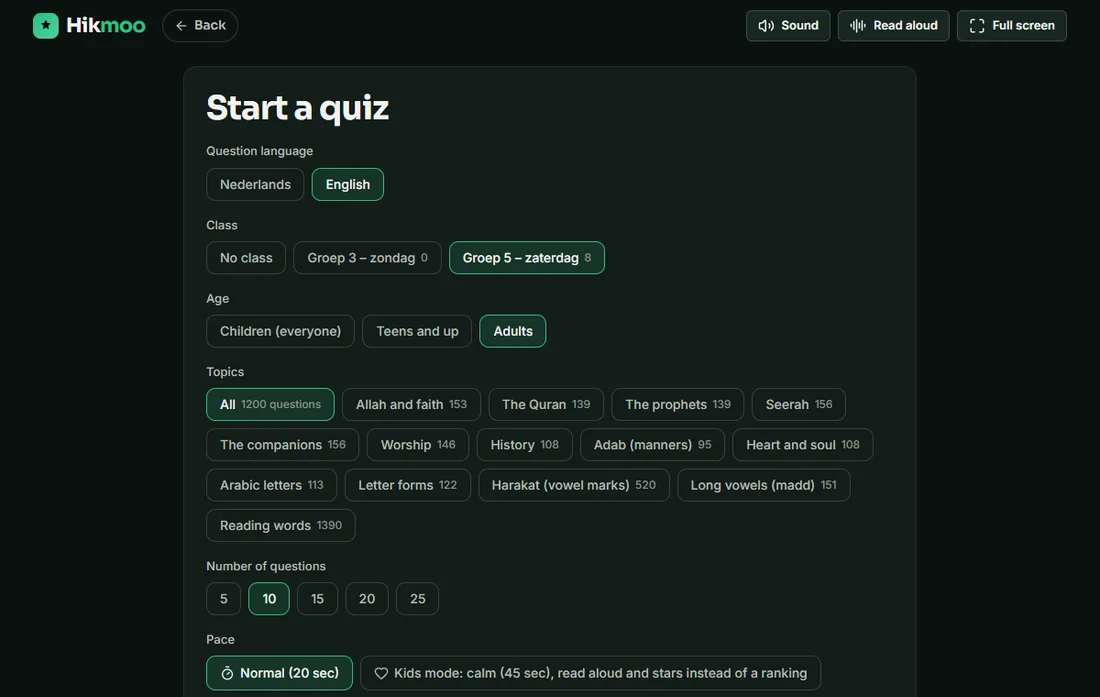
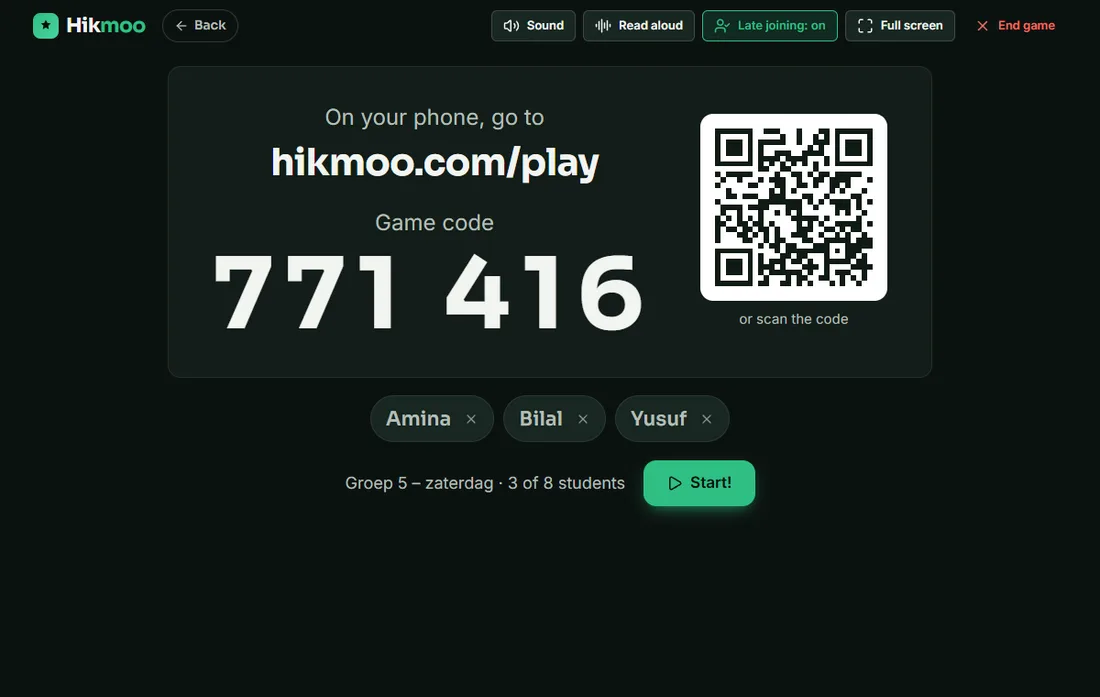
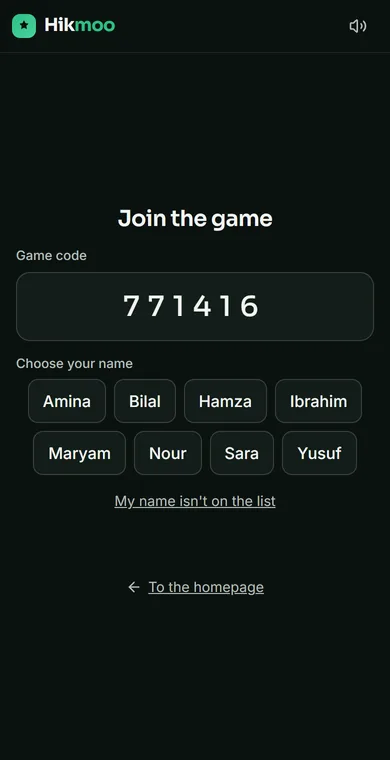
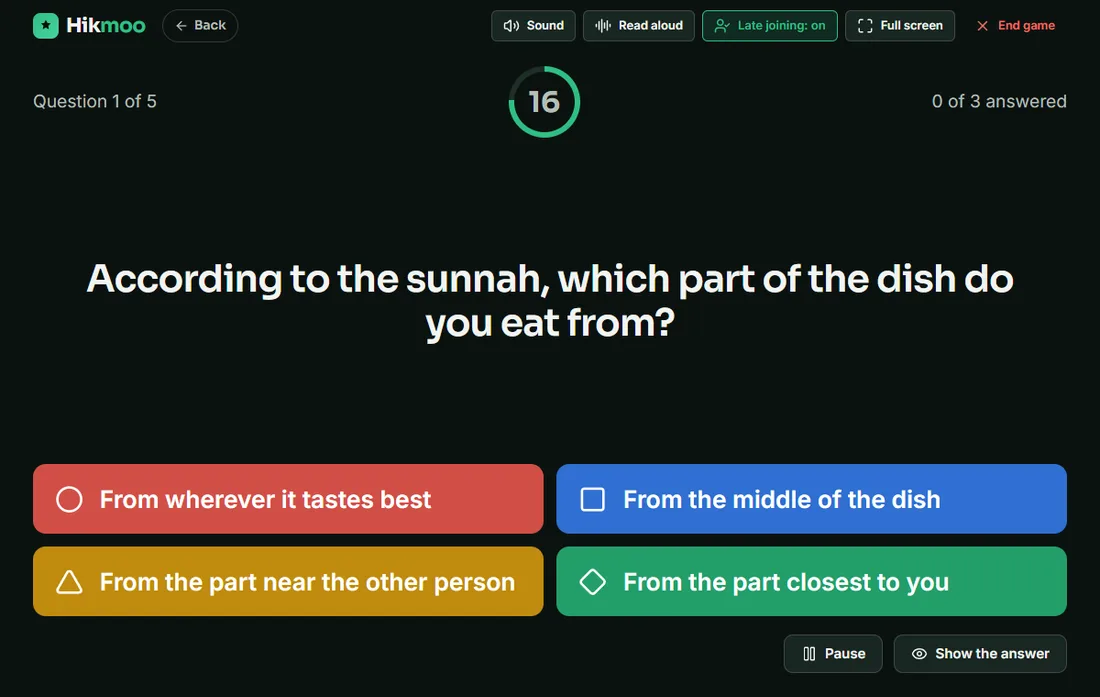
A child arriving late can still join. Don't want that? Turn off Late joining.
Playing on a big screen? Click Full screen.
Bingo (Family and up): under Game mode choose Bingo, then short (16 questions, 3x3 card) or long (24 questions, 4x4 card). Everyone gets their own card on their phone and taps the answer when it is on it. Wrong tap: that square is closed for 3 questions. Wins: 1 line, 2 lines and BINGO with a full card. After each question the tv shows a card with the right answer stamped.
Practising Arabic reading? Choose Arabic letters, Letter forms, Harakat or Long vowels (madd) under topics. The questions are made fresh each time from a fixed letter table, so every lesson is different. With listening questions ("Which sound do you hear?") the sound plays by itself on the TV screen; press Listen to hear it again. Turn the TV sound on. You can also mix them with other topics.
Teaching online (Zoom or Teams)
Not enough classrooms, or a group that has its lesson at home? Teach via Zoom or Teams and share Hikmoo on your screen. The children join from home on their phone or laptop.
- On your Dashboard or under Lessons, click Online lesson (Zoom/Teams) (or open hikmoo.com/en/stream). Online lesson is already selected; no TikTok name needed.
- Choose the questions (question bank or your own quiz) and click Start. The screen is landscape, which fits Zoom and Teams.
- In Zoom or Teams, share this window (screen sharing). The children go to hikmoo.com/play, type the code and join.
- From the panel on the right you play the quiz, Hifz (reading and repeating), presentations, last one standing, and let the children vote on what to do. They vote and answer on their own screen.
Zoom and Teams show the shared screen a few seconds late; that is why Live delay is set to 4 seconds, so everyone gets the full time.
Online lessons are included in Class, School/mosque and Live.
Planning and teaching lessons
Under Lessons you build each class's lesson for a day from your content, and then teach it step by step. You see exactly what the lesson looks like and how much time each part takes.
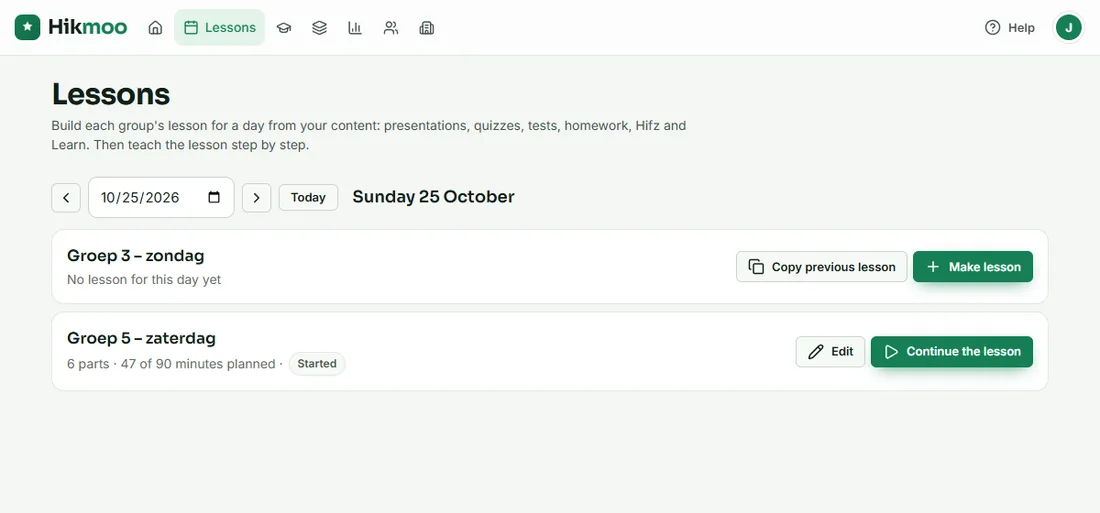
- In the menu go to Lessons. You see today (use the arrows or the date to pick another day) and per class whether there is a lesson already.
- Click Make lesson for a class, or Copy previous lesson if your lesson has the same structure every week.
- Add parts: Board lesson (Learning tracks), Presentation, Quiz in class, Test, Homework, Hifz, Learn or an Own part (e.g. Opening and du'a). For Learning Tracks you choose the track, the module and the lesson, and whether it is for children or for young people and adults; the next lesson for this group is already selected. Hikmoo estimates the time per part; adjust the minutes and set the lesson length at the top. Use the arrows to change the order. Everything is saved automatically.
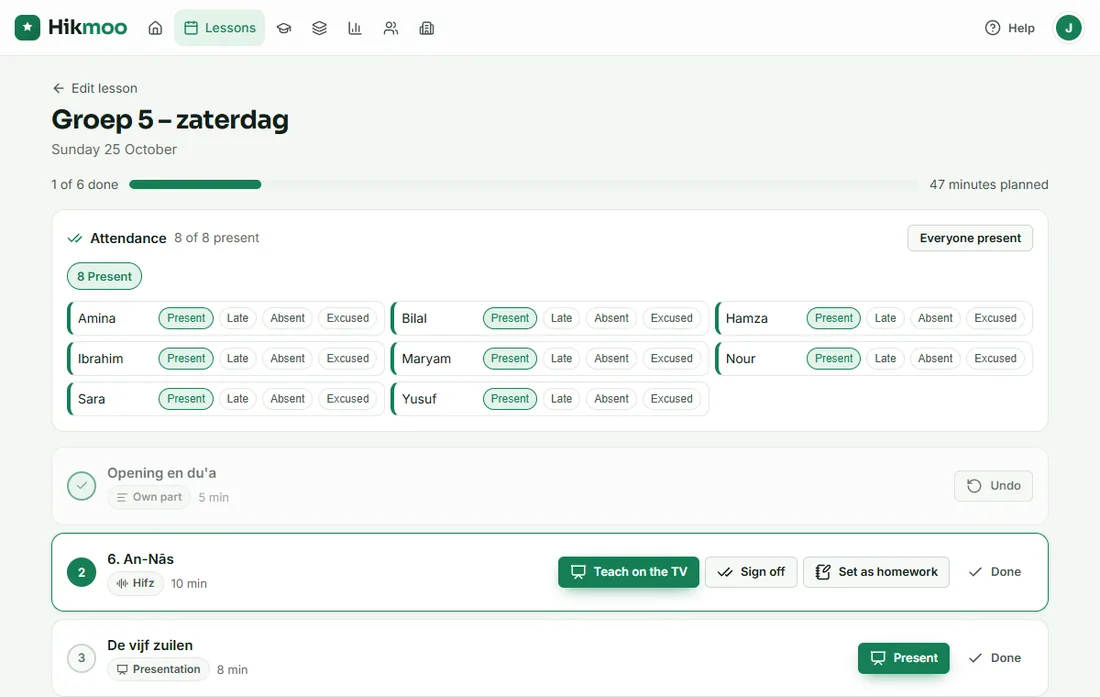
- Click Start the lesson. At the top you fill in attendance. Each part has the right button: Present, Start the quiz on the TV, Start the test, Set homework, Teach on the TV and Sign off (Hifz), Open step (Learn). What goes on the TV opens in a new tab. Click Back to the lesson there: the tab closes, you are back in your lesson and that part is ticked off automatically (use Undo to reverse it).
- Tick a part with Done and click Finish the lesson at the end. The Dashboard shows today's lessons with Start the lesson.
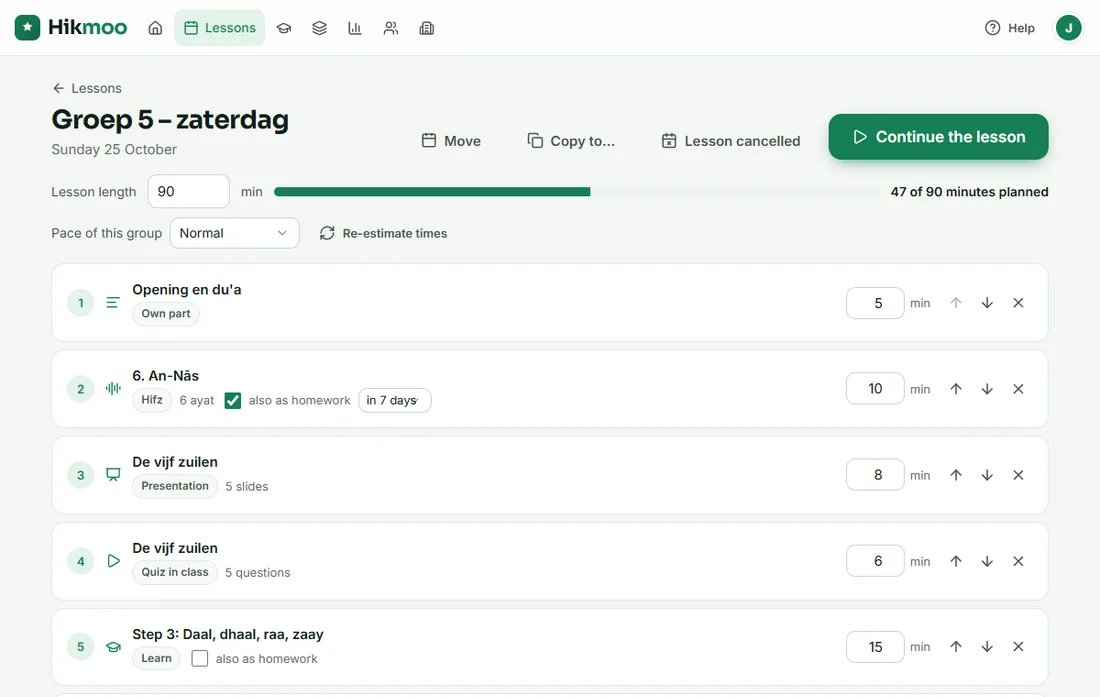
Move: open the lesson (Edit) and pick another date; the whole lesson moves along. Copy to…: pick a date and one or more groups. So you make a lesson once and put it in all groups.
Lesson cancelled (in the lesson): pick a reason and an optional note. Parents and students see it right away on their link, Share via WhatsApp sends it to the parents' group, and that day does not count for attendance. Teach after all undoes it.
You can also plan ahead: pick another day with the arrows.
Clicked away? A started lesson shows Continue the lesson on the Dashboard and under Lessons; you carry on where you were.
For Hifz and Learn you can tick also as homework; in the lesson you then set it with one click.
Own branding
Give your students' screens the colours, name and logo of your school, mosque or course. Your own teacher environment stays as it is.
- Click your account top right (the circle with your first letter) and choose Own branding.
- Choose one of the six colour schemes. The answer colours A, B, C and D always stay the same, so children recognise them.
- Fill in the name and optionally choose a logo (a png with a transparent background looks best).
- The branding appears straight away on the quiz on the TV and the phones, presentations, Hifz and Learn, tests, the parent page and the livestream.
If you work in an organisation, the coordinator sets the branding for all teachers.
Teaching in a bright room with a projector? Choose the Light (projector) scheme.
Presenting lesson material
With Presentations you put your lesson material on the TV as slides: explanation, key points, an ayah or hadith in Arabic, and images. Then you can play a quiz straight away.
- In the menu go to Content › Presentations, type the name of your lesson and click New presentation.
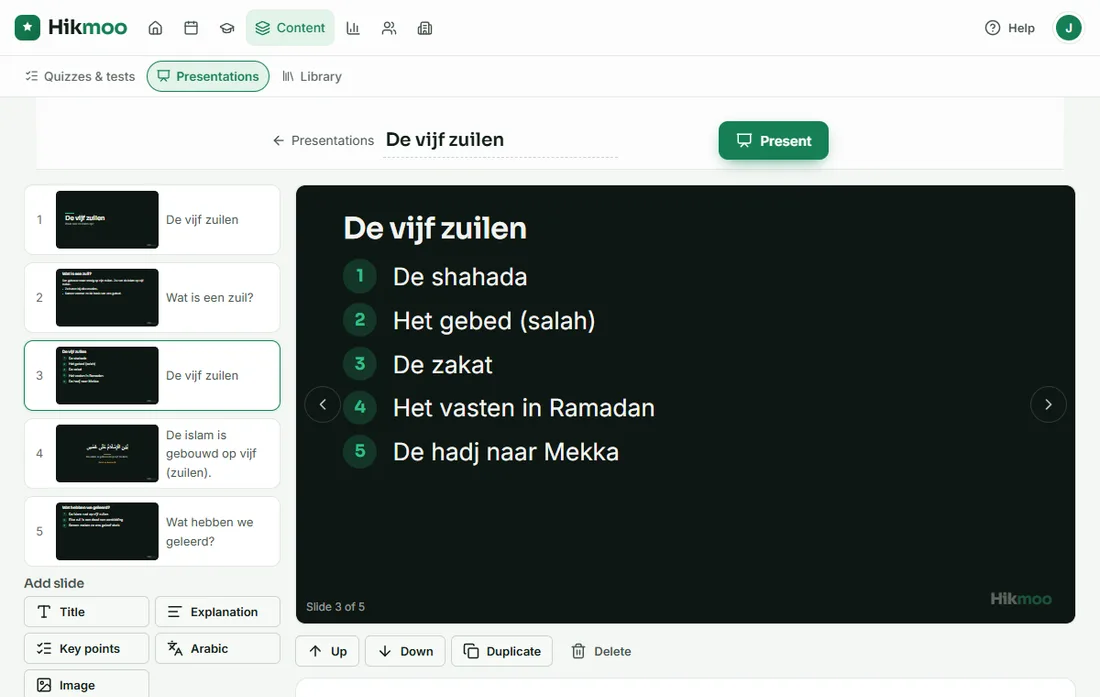
- Add slides with the buttons below the list: Title, Explanation, Key points, Arabic or Image. On the right you see the slide as it appears on the TV. Everything is saved automatically.
- Optionally write notes for a slide: only you see them, on your phone.
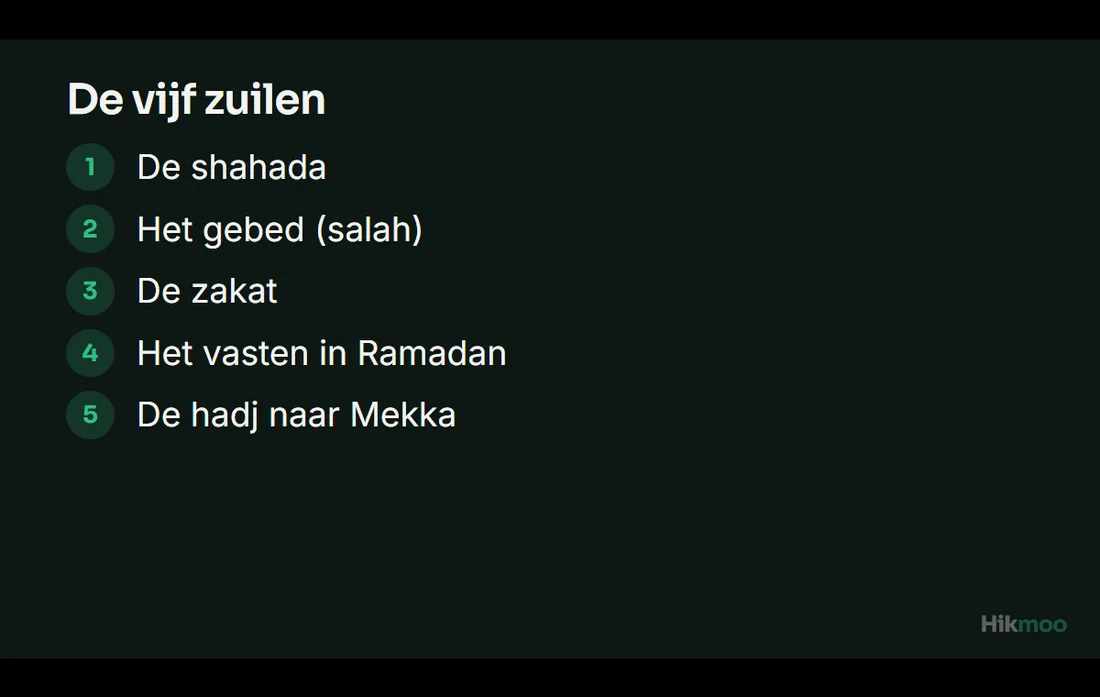
- Click Present. Browse with the arrow keys, the space bar or by clicking the slide. Key points and bullet lists appear one by one. In the editor you browse with the arrows on the preview (or Page Up / Page Down).
- Want to browse with your phone? Click Remote, open the address shown on your phone and enter the code.
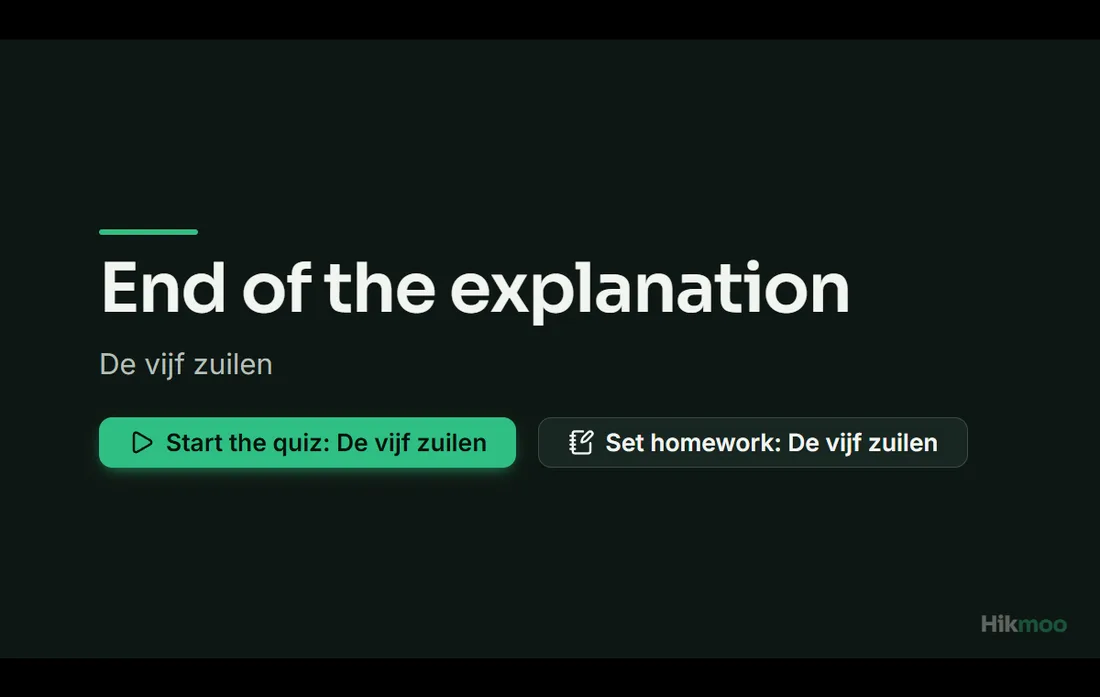
- In the editor, under After the explanation, choose a quiz for class and a quiz for homework. After the last slide the buttons Start the quiz and Set homework are ready, also on your phone. The lesson report then shows which material you taught.
- No time to make slides? Click Make a lesson with AI and paste the text of your lesson. Hikmoo turns it into a presentation and, if you like, the class quiz and the homework, already linked. The AI only uses what is in your text. Check everything before you use it. Each part counts as 1 of your AI allowance.

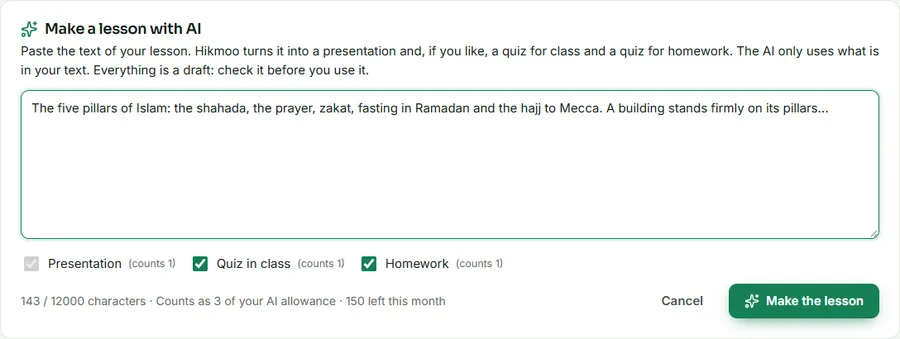
Start a line with "- " for a bullet list on an explanation slide.
In an organisation? Tick Share with colleagues; colleagues can then make a copy. If the lesson's quiz and homework are shared too, they get their own copy of those as well.
Taking attendance
Per lesson you tick who was there. This is separate from the quiz: a child can be present without playing.
- Open your class. At the top is Attendance with today's date.
- Click Everyone present and then change only the exceptions: Late or Absent.
- Clicked the wrong one? Click the same button again to clear it.
- To change an earlier lesson, pick another date or click an earlier lesson below the list.
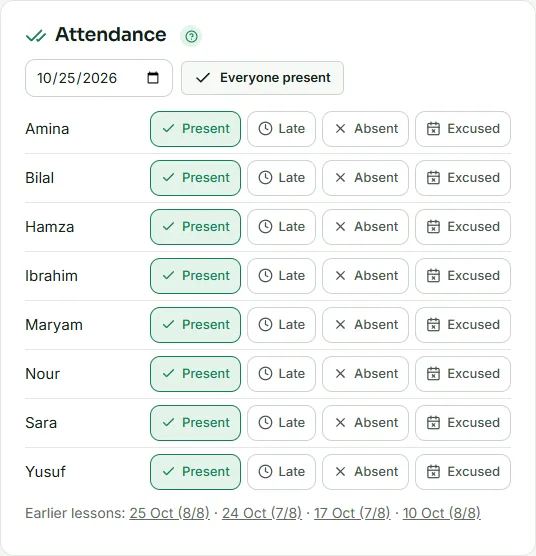
In the lesson you see at the top how many children are there, with the names of who is late, absent or excused, and who is not filled in yet. The rows are coloured: green present, orange late, red absent, blue excused.
Attendance appears on the student report, including the number of times late.
Giving a test
In a test every child answers at their own pace. Multiple choice and short answers are graded automatically; you grade open questions.
- Go to Progress › Tests & homework and choose Test (or click Test / homework on a quiz).
- Choose the quiz, the class and optionally a time limit (e.g. 30 minutes). Click Start the test.
- Children go to hikmoo.com/play, type the 7-digit test code and choose their name.
- Under Progress you see who has started and who has handed in. Under Grading you give open questions 0, half or full points.
- Under Results you see the points and the grade. Export (Excel) downloads the results, PDF / print prints them.


For short answers spelling doesn't count: Jibril, Jibreel and Djibriel are all correct. You can also enter several accepted answers.
Setting homework
Children do homework at home, with a due date. After handing in they immediately see what was right, with the explanation.
- Go to Progress › Tests & homework and choose Homework (or click Test / homework on a quiz).
- Choose the quiz, the class and the due date (up to 30 days ahead). Click Set the homework.
- Click WhatsApp to share the link in the parents' group, or copy the link.
- Under Progress you see who has started, who has handed in and who hasn't started yet.
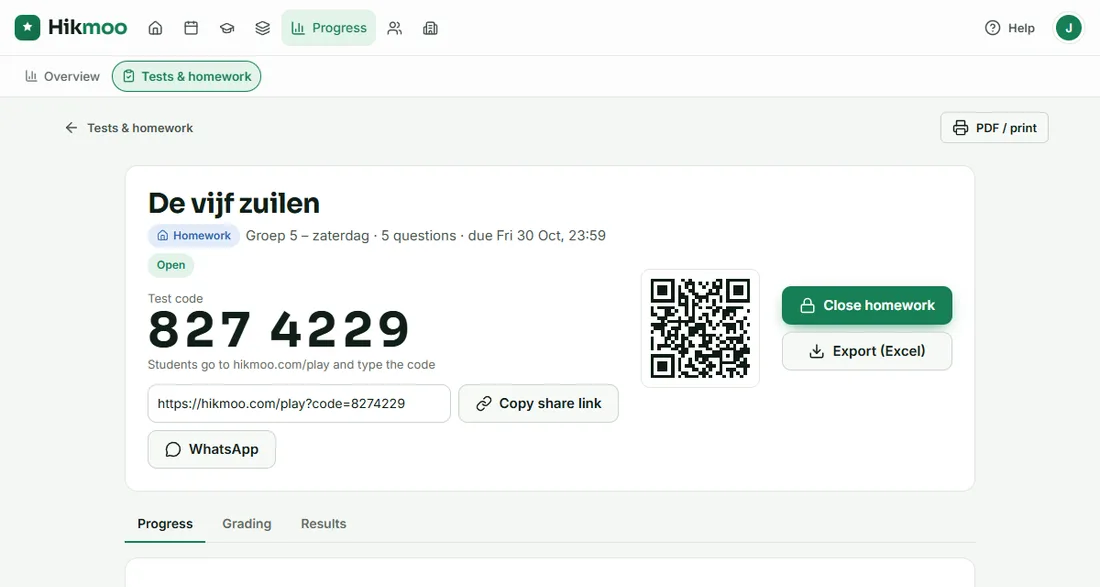
After the due date, whatever a child has filled in is handed in automatically.
Hikmoo Learn: learning to read the Quran
Hikmoo Learn is a course in reading Arabic and the Quran in 22 steps: first the letters, then the forms, each vowel mark and tanwin separately, sukun, the long vowels and small long vowels, the leen letters, the shadda and the moon and sun letters, with real Quran words to read. With Class and School/mosque the course is included for all your students.
- Give every student their personal link: open your class and click the phone button next to the name (QR code, copy or WhatsApp). Students don't need an account.
- On that page the student clicks Continue learning. Each step: an explanation with the sounds, practice and a final test. With 80% correct the step is passed and the next one opens.
- Under Progress (below the table of the chosen class) you find the Hikmoo Learn block. There you open steps for the whole class (e.g. after the lesson on step 5: up to step 5) or, under Open per student, for one student. If you put a step in a lesson (Lessons), you open it in the lesson with one click.
- Under Step as homework you choose a step and a due date. The student sees it at the top of their own page; it is done when the final test is passed. You see who has finished.
- In the student list, under Progress and in the report you see which step each student is at. Needs attention shows who failed the same step 3 times or hasn't practised for 2 weeks.
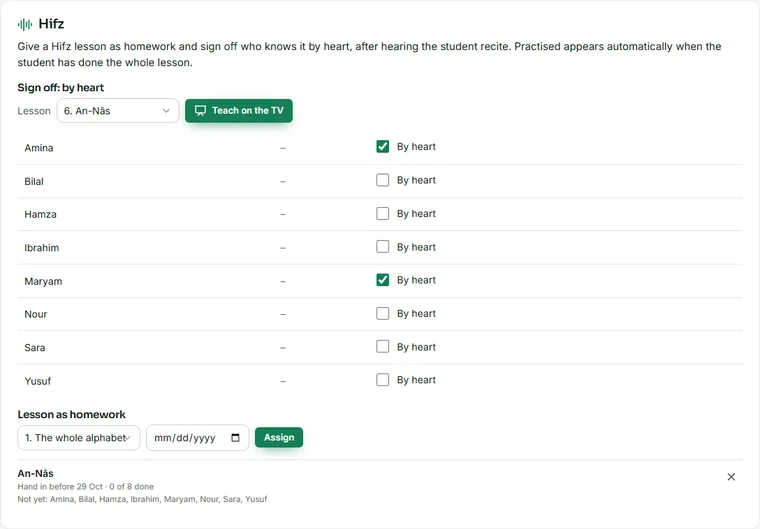
- Next to Reading there is Hifz: lessons to learn by heart (the alphabet, the vowel tables and every surah of Juz' 'Amma). Under Learning tracks › Hifz, click Teach on the TV for a lesson: it opens in a new tab; put it full screen and recite together with the class. Under Progress (block Hifz) or in the lesson itself (Lessons, button Sign off) you tick By heart per student once you have heard the student recite it, and you give a lesson as homework. Practised appears automatically when the student has done the whole lesson with Follow the lesson. You also see it under Progress and in the report. With the surahs under Learn › Hifz, Play all plays every surah of Juz' 'Amma in a row, with transliteration and meaning; with Repeat it starts again after the last surah.
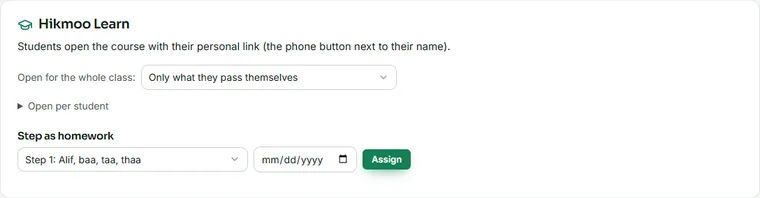
With Reading words every word also shows its meaning (hide it with the eye to let them guess first). In the quiz pick the topic Understanding words: what does this word mean, which word means …, and listening.
With the letters a student can tap Write: Hikmoo shows the stroke order (follow the numbers, dots last) and the student then traces the letter with their finger.
Hifz (next to Reading on Hikmoo Learn): play the letters and sounds (alphabet, fatha/kasra/damma, tanwin, sukun, madd) one after another, lit up, to learn them by heart; choose everything, a row or a column. Recite together, repeat after or say it yourself, speed from 0.5× to 2× (also rising), hide the names with the eye, Follow the lesson (everything ×10, row by row, backwards, pointing at random, automatically one after another) and full screen for the TV in class (space bar = play/pause).
A student who already knows a step can take that step's test straight away and so test through to their level.
If you renew a student's link, the old link stops working, in the course too.
Hikmoo Learning Tracks: teaching with modules
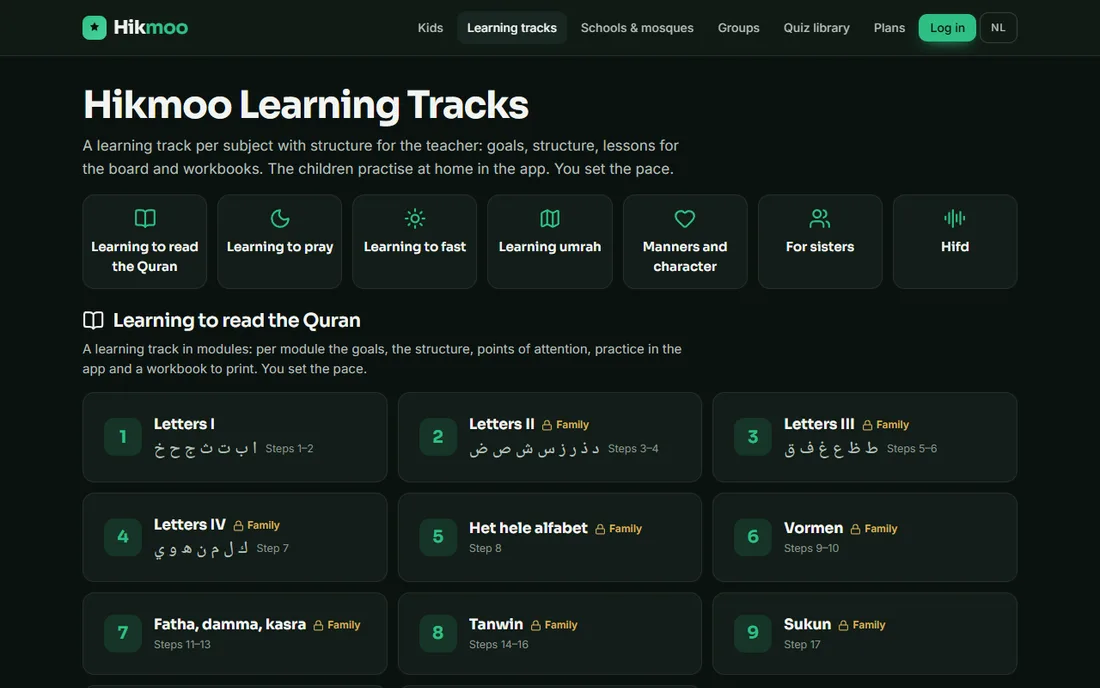
Hikmoo Learning Tracks gives structure to your lessons. There are nine tracks: Learning to read the Quran (11 modules, from the letters to the shadda and al-), Learning to pray, Learning to fast, Learning umrah, Manners and character, Aṣl (understanding the language of the Qur'an, 9 modules), For sisters (presentations for a sisters' gathering or talk), Fiqh for sisters (hayd, istihada, nifas and the ghusl, 5 modules) and Hifz. Per module the goals, the structure, lessons for the board and a workbook or print cards. You set the pace. The first module of every track is free; the rest is in Family, Class and School/mosque.
- Open Hikmoo Learning Tracks (also via Learning tracks at the top of the website or in the menu of your account). Choose a track at the top and a module below it.
- Under Lessons for the board click a lesson: the presentation opens full screen. Browse with the arrows, the space bar or your phone as a remote; it shows a tip for every slide.
- In the lesson: the alphabet with recordings, each letter big with its sound, the writing order, a quick check (on whiteboards or phones), a word of the module and an In your notebook slide with what the children write in their notebook.
- Under Workbook you print the workbook of the module: cover, contents with tick boxes, worksheets, test, certificate and an answer sheet (on or off). Every sheet fits on one A4.
- Then let the children practise in the app: the buttons under In class and at home open the Hikmoo Learn steps that belong to the module.
- Learn on your own (Learning to pray, to fast, umrah, Manners and Aṣl): next to every lesson is the button Learn on your own. With it a student, participant or parent goes through the same lesson at home, step by step on their phone, with questions along the way (choose, myth or fact, find words in an ayah, find the root) and the quiz at the end. Send the link to your WhatsApp group, or let them open it via Learn › Learning tracks. Module 1 is free; with a student or profile link the finished lessons are saved.
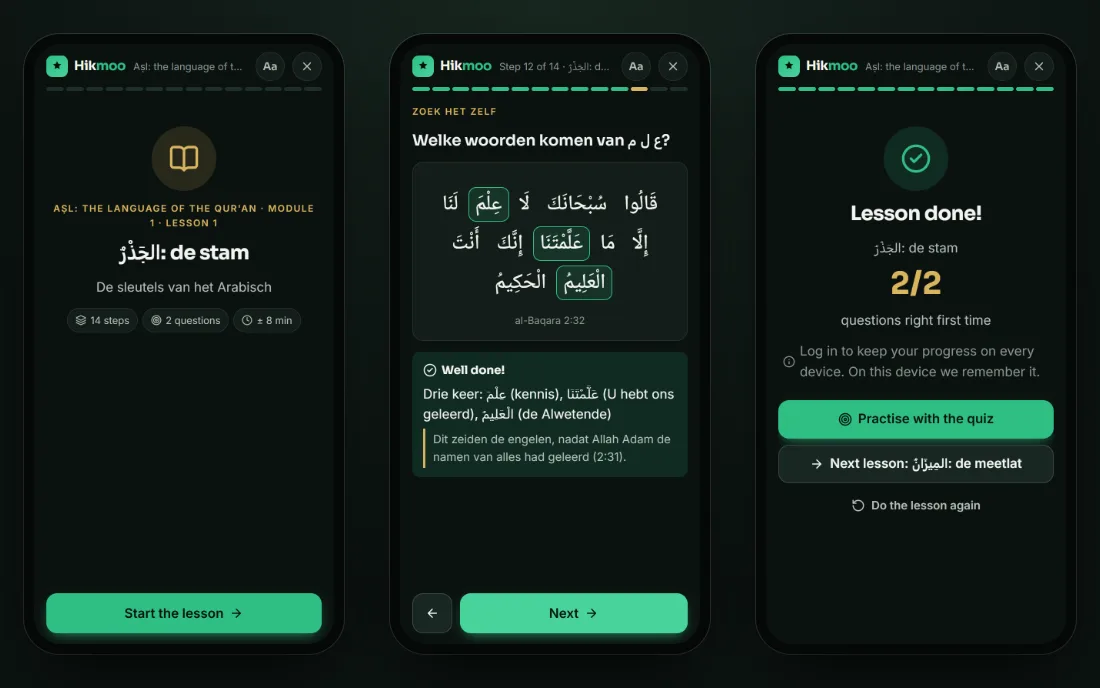
Aṣl is for those who can already read (upper primary, secondary school, mosque): the root, the patterns and the grammar of Arabic, with Arabic terms and examples from the Qur'an, hadith and poetry. One group, with quizzes and print sheets per module.
Learning to pray, to fast, umrah and Manners and character have a lesson for children and a lesson for young people and adults per module, print cards and quizzes (including a test). Play the quiz on the TV straight after the lesson.
For sisters: each part is a presentation of about 40 minutes with a quiz after it. You fill in the last slide yourself.
You add extra words, revision and exercises yourself; the learning track gives the basis.
With Memory with these words the children play memory with the words of the module (word and picture).
Viewing progress
One overview shows how each student is doing per unit: from class quizzes, tests and homework.
- Click Progress at the top and choose the class. Pick the period on the right (e.g. last 3 months).
- Needs attention lists students below 55% in a unit, who missed homework or were often absent, with the reason.
- The Per unit table shows a percentage per student per unit: green going well (75% or more), orange watch, red needs attention. Each column shows the class average, so you also see which unit is hard for the whole class.
- Click a name for that student's full report.

Units are the question-bank topics, and for your own quizzes the unit you set on the quiz. Give your quizzes a unit for a clearer overview.
Your dashboard shows right away how many students need attention.
The student report
Everything about a child in one report: attendance, class quizzes, tests, homework and the topics the child is strong in.
- Open your class and click Reports, or click a child's name in the student list.
- At the top choose one student or All students, and the period (e.g. this school year).
- Optionally type a note for the parents in the box under the report.
- Click PDF / print. With All students you get one A4 page per child, handy for a parents' evening.
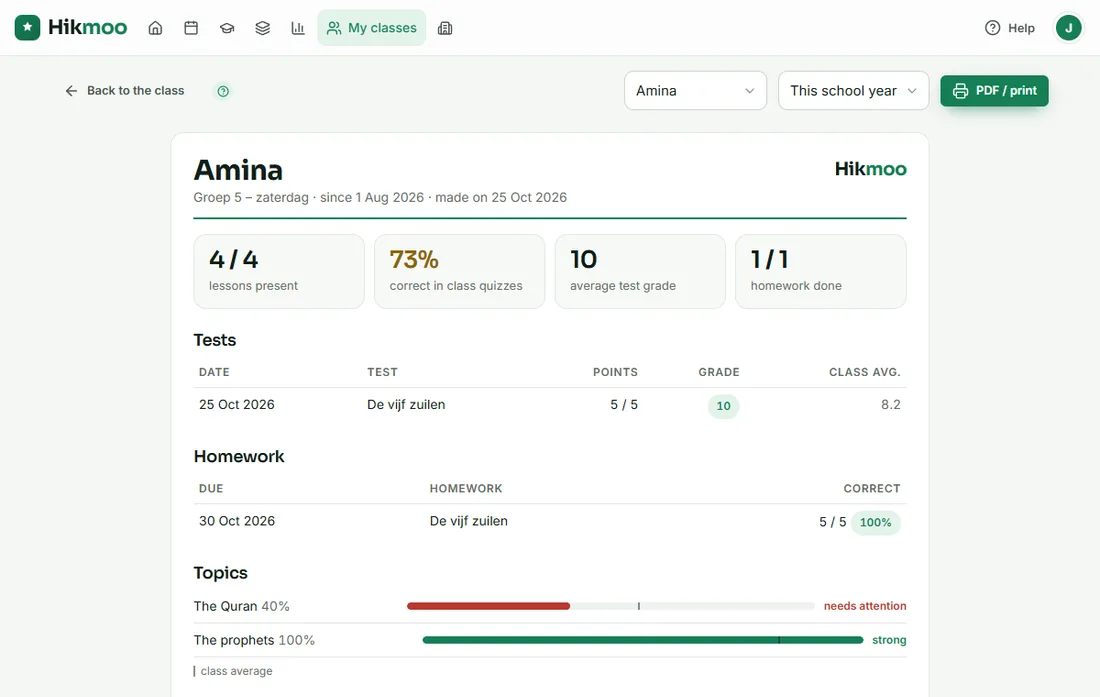
Topics show the child next to the class average (the small line), so you quickly see what needs extra attention.
For young children
Children who can't read (well) yet can join in too.
- When setting up a lesson, choose the pace Calm for young children: 45 seconds per question, and the TV reads the question and answers aloud.
- Add a picture to the answers in your quiz (next to each answer). It shows large on the TV and on the phone buttons.
- Turn reading aloud on or off with Read aloud at the top of the screen.
Reading aloud also names the colour of each button ("Blue: the moon"), so a young child knows where to press.
Working with colleagues
You don't have to make everything yourself: share your quizzes with the other teachers of your mosque or school.
- Open a quiz and tick Share with colleagues.
- Your colleagues see the quiz on their dashboard under Shared by colleagues and can copy it to their own quizzes with Copy.
- A copy can be changed and used as a test or homework; the original stays yours.
For the coordinator
The coordinator manages the teachers of the mosque or school. Teachers get the plan automatically.
- Click the name of your mosque or school at the top.
- Under Invite teachers, enter one or more email addresses (one per line) and click Invite. Every teacher receives an email.
- A teacher leaving? Click Remove. The teacher loses the plan but keeps their own quizzes.
- The overview shows each teacher's classes and how active they are. Children's results are deliberately not shown: those are for the class teacher only.

Cancel lessons for the whole organisation (e.g. on a holiday): pick the date and a reason. All classes of all teachers are cancelled; parents see it on their parent link, and the WhatsApp button sends the message to the parents.
With Rename next to the name you change the name of the mosque or school.
You can also make a teacher coordinator. There is always at least one coordinator.
Frequently asked questions
A child can't join
Check that the child types the right code at hikmoo.com/play. Name not listed? Add the child to the class, or let them choose My name isn't listed and type a name.
Sound or reading aloud doesn't work
Click once anywhere on the screen: browsers only play sound after a click. Also check that Sound is on at the top, and the volume of the TV or laptop.
I accidentally left a lesson
Open Quiz on the TV again on the same computer: the game keeps running and you get back into it.
Can I play a quiz without a class?
Yes. Choose No class when setting up. Children then type a name themselves and there is no lesson report.
Who sees my students' results?
Only you. The coordinator only sees which classes there are and how active they are. Children have no account: only their first name is stored.
Stuck? Ask your coordinator, or email info@hikmoo.com